Tuesday, 30 January 2018

Log Run time String Truncation issue to Windows Event Log.

Log Run time String Truncation issue to Windows Event Log.

Some times, it will be very strenuous to find a runtime issue such as String Truncation. To find this kind of issues Microsoft provide a command for developer to log Windows events when such issue occurs.

Command Line Syntax
Ax32.exe -logstrtrunc
Ax32serv.exe -logstrtrunc

Registry Keys

Alternatively, an optional Windows Registry key for the logstrtrunc option can added, either manually using regedit.exe, or by double-clicking on a .REG file containing the following data:


REGEDIT

[HKEY_CURRENT_USER\SOFTWARE\Microsoft\Dynamics\6.0\Configuration\Original (installed configuration)]

"logstrtrunc"=dword:00000001

[HKEY_LOCAL_MACHINE\SYSTEM\CurrentControlSet\Services\Dynamics Server\6.0\01\Original (installed configuration)]

"logstrtrunc"=dword:00000001

When the logstrtrunc option is on, every time an X++ max-length string gets truncated, the system writes an entry to the Application section of the Windows Event Log. You can view these entries by using the Windows Event Viewer.

For other client configuration commands Refer : https://msdn.microsoft.com/en-us/library/aa569653.aspx

Tuesday, 28 November 2017

Filter by financial dimensions in AX 2012

Filter by financial dimensions in AX 2012

In this article, I'm going to show you how we can filet any form which has Financial as dimension. Like for instance on Items, Inventory transactions, Customers, Sales forecasts.

It was very easy in AX 2009 where we could add financial dimension to over view tab and get the filters work. Ware as in AX 2012 with advanced financial dimension structure it is not possible, but there are ways to do it.

One of the best way is to use out of box features.
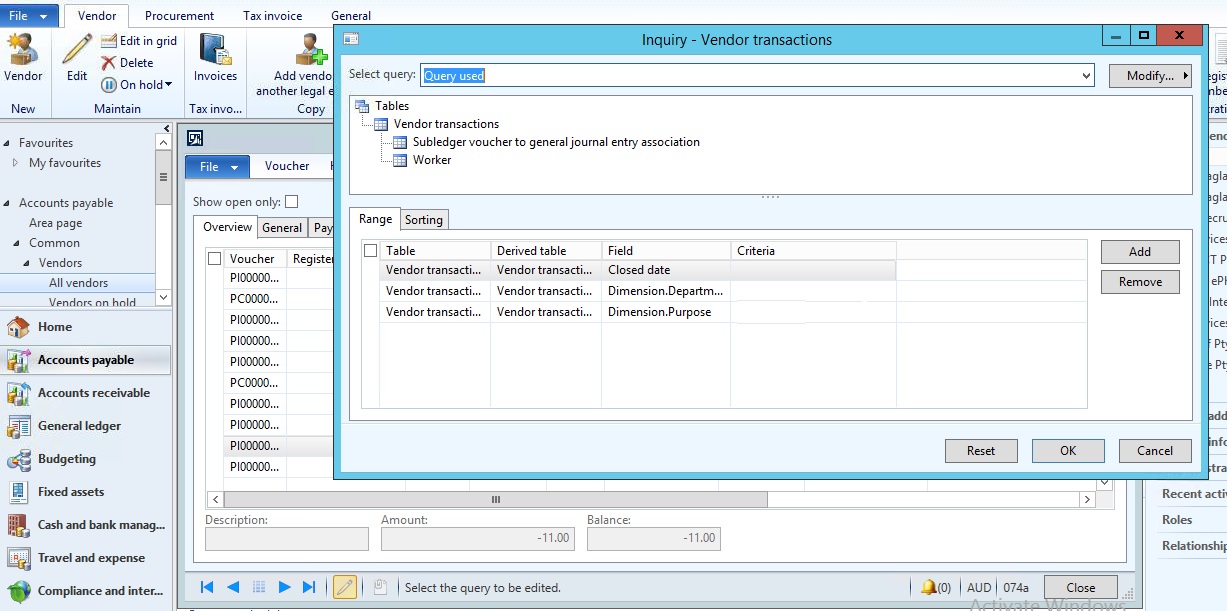
 i.e Advanced Filet option File--> Edit--> Filter--> Advanced filter/sort where we can see the filter criteria like Dimensions.CostCentre, Dimensions.Department, Dimensions.XXX.

Lets do a demo on Vend trans, so I want to apply filter on VendTrans based on Dimension Department and Purpose.
To do this Go to
1. Accounts payable/Common/Vendors/All vendors
2. Select a vendor and click on Transaction.
3. Now go to File--> Edit--> Filter--> Advanced filter/sort 
4. Give the values for the filter and click ok.

This will work for all the forms where financial dimensions are used.


Tuesday, 3 October 2017

Setting "Print Management" through x++ AX 2012 R3

Some times, if you want to set the "Print Management" for many customer will be a tedious job. In that case you may use the below code and make your life easy. 
The code goes as below. 

///
/// Job to set the PrintManagement 
/// Mallik on 04/10/2017
///
static void  MK_Set_PrintManagement1(Args _args)
{
 
  PrintMgmtSettings             printMgtSettings;
  PrintMgmtDocInstance          printMgtDocInstance;
  SRSPrintDestinationSettings   printDestinationSettings;
  PrintMgmtReportFormat         PrintMgmtReportFormat;
  PrintMgmtDocumentType         PrintMgmtDocumentType;
  PrintMgmtDocInstanceType      PrintMgmtDocInstanceType;
  NoYes                         NoYes;
  SRSReportFileFormat           SRSReportFileFormat;
  SRSPrintMediumType            SRSPrintMediumType;
  str                                  EmailTo;
  CustTable                     lCustTable;
  LogisticsElectronicAddress    elecAddress;
  container                     record;
  int                               totalRecords;
  container                     printerSetting = conNull();
  try
  {
      while select lCustTable where lCustTable.AccountNum == 'C5002'
      {
          totalRecords = totalRecords + 1;
          select firstOnly elecAddress
            where elecAddress.Location == DirPartyLocation::findOrCreate(lCustTable.Party, 0).Location
            && elecAddress.Type == LogisticsElectronicAddressMethodType::Email; 
          if (elecAddress.RecId)
          {
              EmailTo                       =  elecAddress.Locator;
          }

          printDestinationSettings =   new SRSPrintDestinationSettings(printerSetting);
          printDestinationSettings.unpack(printerSetting);
          printDestinationSettings.caption("@SYS131685");
          printDestinationSettings.emailTo(EmailTo);
          printDestinationSettings.printMediumType(SRSPrintMediumType::BTDPA_Process);
          printDestinationSettings.emailSubject('Invoice');
          printDestinationSettings.emailAttachmentFileFormat(SRSReportFileFormat::PDF);
          printDestinationSettings.numberOfCopies(1);
          printMgtDocInstance=PrintMgmtDocInstance::find(lCustTable.RecId, lCustTable.TableId, PrintMgmtNodeType::CustTable,1 ,1);
          ttsBegin;
          
          if (printMgtDocInstance)
          {
              printMgtDocInstance.selectForUpdate(true);
          }
          printMgtDocInstance.Name           = "AutoDelivery";
          printMgtDocInstance.DocumentType   = 1;
          printMgtDocInstance.PrintType      = PrintMgmtDocInstanceType::Original;
          printMgtDocInstance.PriorityId     = 1;
          printMgtDocInstance.Suppress       = NoYes::No;
          printMgtDocInstance.ReferencedTableId  =  lCustTable.TableId;
          printMgtDocInstance.ReferencedRecId    =  lCustTable.RecId;
          printMgtDocInstance.NodeType           =  PrintMgmtNodeType::CustTable;
          
          if (printMgtDocInstance)
                  printMgtDocInstance.update();
          else
                  printMgtDocInstance.insert();
          select firstOnly printMgtSettings order by PriorityID where printMgtSettings.ParentId==printMgtDocInstance.RecId && printMgtSettings.PriorityID==1;
          if (printMgtSettings)
          {
              printMgtSettings.selectForUpdate(true);
          }
          printMgtSettings.ParentId           = printMgtDocInstance.RecId;
          printMgtSettings.ReportFormat       = PrintMgmtReportFormat::findByDescription(1,'SalesInvoice.Report').RecId;
          printMgtSettings.PrintJobSettings   = printDestinationSettings.pack();
          printMgtSettings.NumberOfCopies     = 1;
          printMgtSettings.PriorityId         = 1;
          if (printMgtSettings)
                  printMgtSettings.update();
          else
                  printMgtSettings.insert();
          ttsCommit;
          if(printMgtDocInstance && printMgtSettings)
          {
              info(strFmt("Total recoreds updated: %1",totalRecords));
          }
          else
          {
              error(strFmt("Total recoreds updated: %1",totalRecords));
          }
      }
  }
  catch(Exception::Error)
  {
      Throw(Exception::Error);
  }
  info(strFmt("Total Read Records = %1",totalRecords));
}


Tuesday, 26 September 2017

DIXF: Importing any table data with Financial Dimension (default Dimension) field in the table

DIXF: Importing any table data with Financial Dimension (default Dimension) field in the table

Lets say, I want to import the data into MKxyz Table with 3 fields as below.

1. StId
2. StName
3. DefaultDimension

Source: 
In the source we have the Dimension as
Department : A01
Purpose : Std
Ex:
StID,StName,Dept,Purpose
1,abc,A01,Std
2,xyz,A02,Ptc

Solution :

Here I am not going to talk about, how to import data using DIXF for that you can refer here
So now we are going to talk about, how to convert the above CSV file to use with DIXF.
we need to convert the file as below.
StID,StName,DefaultDimension
1,abc,A01--Std
2,xyz,A02--Ptc

To summaries
DefaultDimension is give as per the dimension sequence setup
lets say the sequence is
1. Department ,Cost-center and purpose
then the value in Default Dimension field is DD-CC-PP
2. Department ,Cost-center and purpose and we don't have cost-center value
then the value in Default Dimension field is DD--PP
3. Department ,Cost-center and purpose and we don't have purpose value
then the value in Default Dimension field is DD-CC-


Sunday, 24 September 2017

Update Customer / Vendor Email address or phone number AX 2012 X++

In this topic, we will learn how to update the customer / vendor Email Address  or Phone number
static void MK_CustomeremailUpdate(Args _args)
{
    DirPartyTable            dirparty;
    DirPartyLocation dirPartyLocation;
    LogisticsElectronicAddress elecAddress;
    LogisticsElectronicAddressRole elecAddressRole;
    LogisticsLocationRole locRole;
    CustTable                           cust = CustTable::find('CXXX'');///Replace with vendTable for Vendors
// Update all the customers use the while loop or you can just use the above fine method to get the customer.  
while select cust
    where cust.AccountNum != " "
    {
        select forUpdate firstOnly elecAddress
        where elecAddress.Location == DirPartyLocation::findOrCreate(cust.Party, 0).Location
        && elecAddress.Type == LogisticsElectronicAddressMethodType::Email; // Replace with Phone to update phone number
        if (elecAddress.RecId)
        {
            info(strFmt("%1 , %2 - email - %3", cust.AccountNum, cust.name(),elecAddress.Locator));
            ttsBegin;
            elecAddress.Type = LogisticsElectronicAddressMethodType::Email; // for phone type should be phone
            elecAddress.Locator = 'xxx.aaa@xxx.com'; // for phone number give the new Phone number
            elecAddress.update();
            ttsCommit;
            info(strFmt("%1 , %2 - email - %3", cust.AccountNum, cust.name(),elecAddress.Locator));
        }
       
    }
}

Thursday, 7 September 2017

Virtual Machine(VM) setup to access Dynamics 365 for Operation instance.

https://dynamicsax708.wordpress.com/2017/03/16/virtual-machinevm-setup-to-access-dynamics-365-for-operation-instance/

References:

SI NOTOPICSSOURCES
1Access Microsoft Dynamics 365 for Operations instanceshttps://ax.help.dynamics.com/en/wiki/access-microsoft-dynamics-ax-7-instances-2/
2Installation of Hyper-V and creating virtual machinehttps://technet.microsoft.com/enus/library/hh846766(v=ws.11).aspx

Tuesday, 8 August 2017

Using system classes to connect to database x++

Here in this topic, we will learn about how to connect SQL database using standard classes (without creating ODBC connection.

The code below uses the ODBCConnection class and LoginProperty class to connect to SQL DB.

server static ODBCConnection createConnection(str _SQLServerName, str _DatabaseName)
{
    ODBCConnection  connection;
    LoginProperty   loginProperty;
    ;
    loginProperty = new LoginProperty();
    loginProperty.setServer(_SQLServerName);


    loginProperty.setDatabase(_DatabaseName);

    connection = new ODBCConnection(loginProperty);

    return connection;
}

It will return the connection, which can be used to execute SQL statements.

How to Get Trade Agreement Line Discount Percentage by Item and Date in D365FO Using X++

  In Microsoft Dynamics 365 Finance and Operations (D365FO), trade agreements are used to manage prices and discounts for customers, vendor...